uCalc September 2026 update
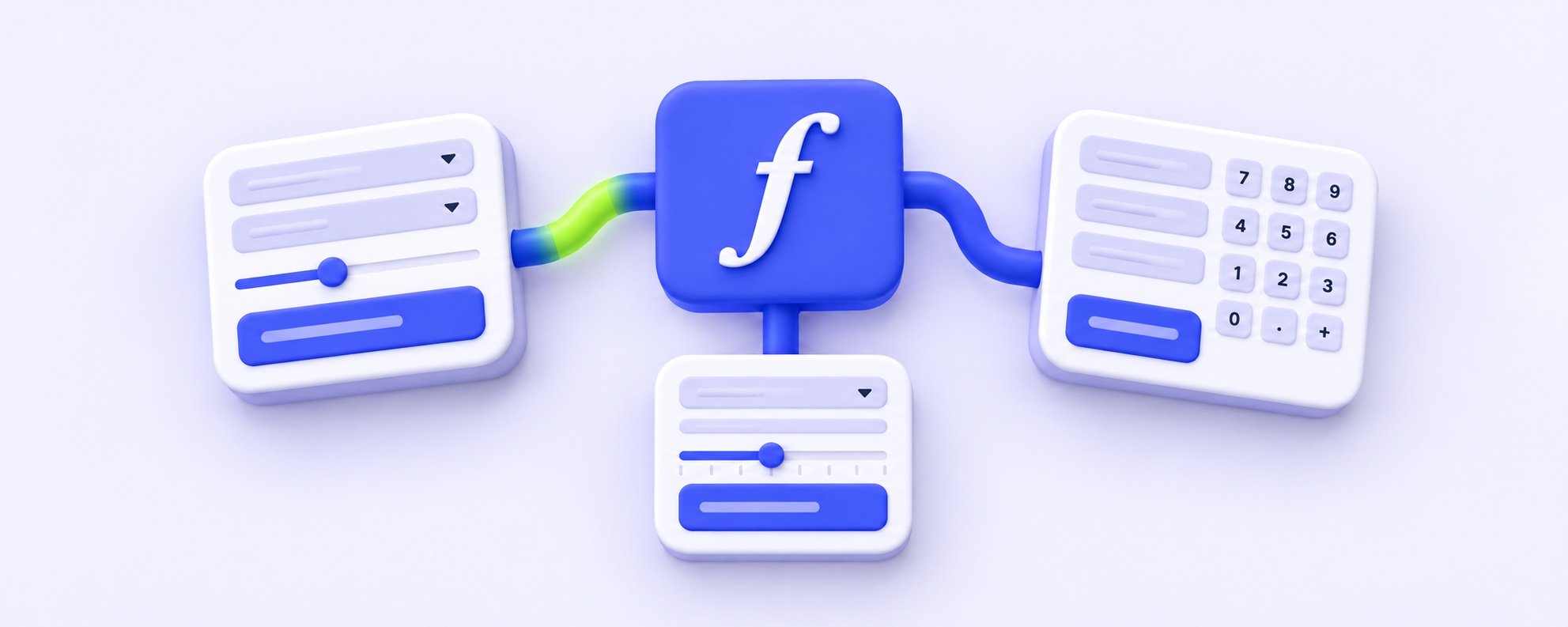
The highlight of this update is global formulas: share a formula or price across your forms and change it in one place. There is also a unified editor toolbar, design settings beside the form, a visual editor for notification emails, readable form URLs and field tooltips. Here is what changed and where to find it.
Global formulas: one formula for all your forms
If you have several calculators for different websites or locations, you may use the same prices in each one: an installation rate, a call-out fee or a rush-order surcharge. Previously, changing a price meant finding and updating it in every form. Now you can make that formula global: all your forms share one version. Change it in one form, and the change applies everywhere it is used.

How it works
- In formula mode, click the globe icon on a formula card and confirm that you want to make it global. Its R label changes to G.
- Open another form, choose the option to add a global formula and click the plus next to the one you need. Its result appears in the form. Formulas already added to that form are marked accordingly.
- Edit the formula in any form that uses it. The change is saved immediately and applies to every linked form, including published ones. You do not need to save the other forms again.

A global formula can be a simple number, too: a call-out fee, a markup or an exchange rate. Display it as a separate result row or use it in other formulas to share the same price or coefficient across your forms.
A few things to know:
- Removing a global formula from the current form leaves it available in your other forms.
- Converting it back to a regular formula keeps it in the current form but removes it from the other forms that use it.
- A published form loads only the global formulas it actually uses. An error in one formula no longer breaks all calculations in the form.
Where to find it: formula mode → the globe icon on a formula card. In another form, use the option to add a global formula.
A new editor toolbar
The editor previously had three ways to reach its main sections: the Logic / Design / Formula switch, a settings icon and a colour icon above the form. Now one toolbar brings together elements, formulas, logic and design. Form settings, preview, publishing and the Save button are on the right.

The Save button shows what is happening. Green means you have changes that are not yet on your website. While the form is being saved, it shows a saving status, followed by confirmation. If saving fails because of a lost connection or an expired session, the button turns red and offers a retry. Changes no longer disappear silently.

Autosave still protects your draft. The Save button applies changes to the form on your website.
Form settings in the side panel
The former additional-settings window is now a form-settings panel. It includes a form-width slider, a choice of visual or text formula editor, links to submissions and integrations, the Telegram bot and the system Yandex Metrica setting.

Where to find it: the settings icon on the right of the top toolbar.
Design settings beside your form
Design settings used to cover the form. They now open on the left, so the form stays visible and you can see each change immediately. There are four tabs:
- Theme — four themes and their colour schemes. Every theme now includes light and dark purple schemes.
- Colours — primary and contrast colours, text colour, field backgrounds and font. Custom colours now reach the published form while preserving the theme's style.
- Background — a background colour or image, with an optional darkening effect.
- CSS — custom styles applied only to the form, without affecting the editor.

Result rows
Several large, coloured totals in a row can look heavy. You can now choose a result-row style: follow the theme, use a filled background, show an outline or remove the background. Use a theme colour or a custom colour, adjust the fill opacity, or put the label and amount on one line with the compact-row option. Set the style for all results in the design panel, or change a single row in its settings.

Published forms keep their existing appearance: result rows follow the theme by default. Choosing a different colour scheme resets custom background and field colours, so a dark scheme gets its dark background again. Clicking the already selected scheme does not reset anything.
Where to find it: the design panel → theme → result rows. For one row, open the settings next to its result and choose the design section.
Submission emails: a visual editor and variables
You can now edit a notification email like ordinary text, with bold formatting, lists, links, images and colours. Form-field variables appear as blue chips. Formula results appear as green chips labelled R1, R2 and so on, making formulas with the same name easier to tell apart. Grey chips represent submission details such as the form name, order number, website address and IP address.
The variable picker inserts a value at the cursor: as a chip in the visual email editor, or as a variable name in the subject line and HTML. The subject is a regular text field, so a subject containing a total variable arrives with the calculated amount. The HTML mode is still available if you prefer to build your own email layout.

Preview shows the subject and email on desktop and mobile, using the values currently selected in your form. Empty fields are shown by name. You can send a test to your own email address or restore the standard template.

Emails are assembled on the server
Previously, the visitor's browser assembled the email. Now the server builds it from the saved form and submission. Visitor-provided values are escaped, unsafe code is removed from your HTML, and rows whose variables are all empty are left out. The standard notification is a tidy table without empty fields.
Existing templates continue to work. Older variable names are still recognised, and results in older forms remain available. You do not need to rebuild your templates.
Where to find it: form button → click action → send a notification → email → email-template settings.
A custom form URL instead of a number
Form links get shared in messages, printed on business cards and included in QR codes. A numeric address is hard to remember and tells a customer little. You can now give your form a readable address, such as api.ucalc.pro/ceiling-demo. The original numeric link continues to work, so links you have already shared will not break.

The address can contain 3–40 characters: Latin letters, numbers and hyphens, with at least one letter. Addresses are shared across all uCalc forms. If the name you want is already taken, choose another one.
The publishing screen now centres on your form address: copy it in one click, download a PNG QR code, share the form, or copy the embed code, which is always expanded. The status at the top shows whether the form is published, when it was saved, and whether you have changes that are not yet on your website.

How your link looks in messages
In the form-information settings, add a title, description and 1200 × 630 image for messaging apps and social networks to display alongside the link. You can also set a favicon for the browser tab.

Where to find it: the publishing icon in the top toolbar → edit the form address. To configure the link preview, open its settings on the same screen.
Custom-domain support is coming soon. The publishing screen already includes a custom-domain tab.
Field tooltips
A visitor may need a short explanation before choosing an option. Add a tooltip to a field, and a question-mark icon appears next to its title. Clicking it opens your explanation without cluttering the form.

In the editor, tooltips open on hover. The tooltip script is loaded on your website only if the form contains at least one tooltip.
Where to find it: field settings → tooltip.
Images: size, corners and enlargement
An image no longer has to fill the entire column. You can now adjust:
- width — 100%, 75%, 50% or 25% of the column — and alignment;
- aspect ratio — original, 16:9, 4:3 or 1:1 — with cropping or the whole image visible;
- rounded corners, an outline or a shadow;
- a caption below the image and a tooltip on hover, enabled separately;
- the click action: open a link or enlarge the image;
- visibility on mobile only or desktop only.

An enlarged image fits the screen without being stretched beyond its resolution. If your form is embedded as a widget, the enlarged image opens across the website page.

Replace an image without deleting its block: the block's number, name and logic rules stay in place. Image names now appear in the logic editor instead of identical generic labels. The canvas also shows the block number and image name.

The old default image name no longer appears as a tooltip for visitors, including in forms already published. You do not need to save them again.
Where to find it: hover over the image and open its settings, then choose size and appearance or click-action and visibility settings.
Button actions: WhatsApp, reset and calculate again
Form buttons have new actions.

Send a WhatsApp message
After submitting the form, a visitor can open WhatsApp with a prepared message addressed to your number. They only need to tap Send. The submission is still saved and notifications are sent as usual. Configure the message the same way as for Telegram and MAX; by default it includes all fields and results.

Where to find it: button settings → click action → WhatsApp message.
Reset the form or calculate again
The reset action returns fields to their initial values, which is useful when someone runs several calculations. You can also add a calculate-again button to the thank-you screen. It takes the visitor back to a clean form without reloading the page.

Where to find it: reset is in the button's click actions. The return button is in its after-submission message settings.
The text toolbar
The formatting toolbar has clearer icons and updated controls:
- Set a font size from 10 to 72 using the minus and plus buttons, arrow keys or slider.
- Choose whether a link opens in a new tab or the current one. In the current tab, navigation affects the whole website page, rather than only the embedded form.
- Addresses are normalised automatically: websites without a protocol, phone numbers as
tel:links and email addresses asmailto:links.

Where to find it: select text in a text block.
Import options into lists
It is easier to paste a price list than enter 40 items one at a time. Add options to dropdowns, radio buttons and checkboxes by pasting a list or uploading a CSV or TXT file. Put one option on each line, with its value separated by a tab, semicolon or comma. Append the new options to the current ones or replace the entire list.

Where to find it: formula mode → list block → import. The button now matches its block's colour, making it easier to spot.
More improvements
- amoCRM and Bitrix24 are directly available in the data-transfer menu, without an extra step.
- Field settings have new, lighter icons.
- Formula cards show expand and delete actions directly below the formula while you edit it.
- Editor tooltips appear reliably.
- Published forms are roughly a quarter lighter: visitors no longer load the editor's code.
- The English editor is fully translated.

What should we improve next? Tell us which features you are missing and what would make your work easier in our short feedback survey. Your answers will help us choose the next improvements.
With love, the uCalc team ❤️
What do you think? Share your thoughts in the comments